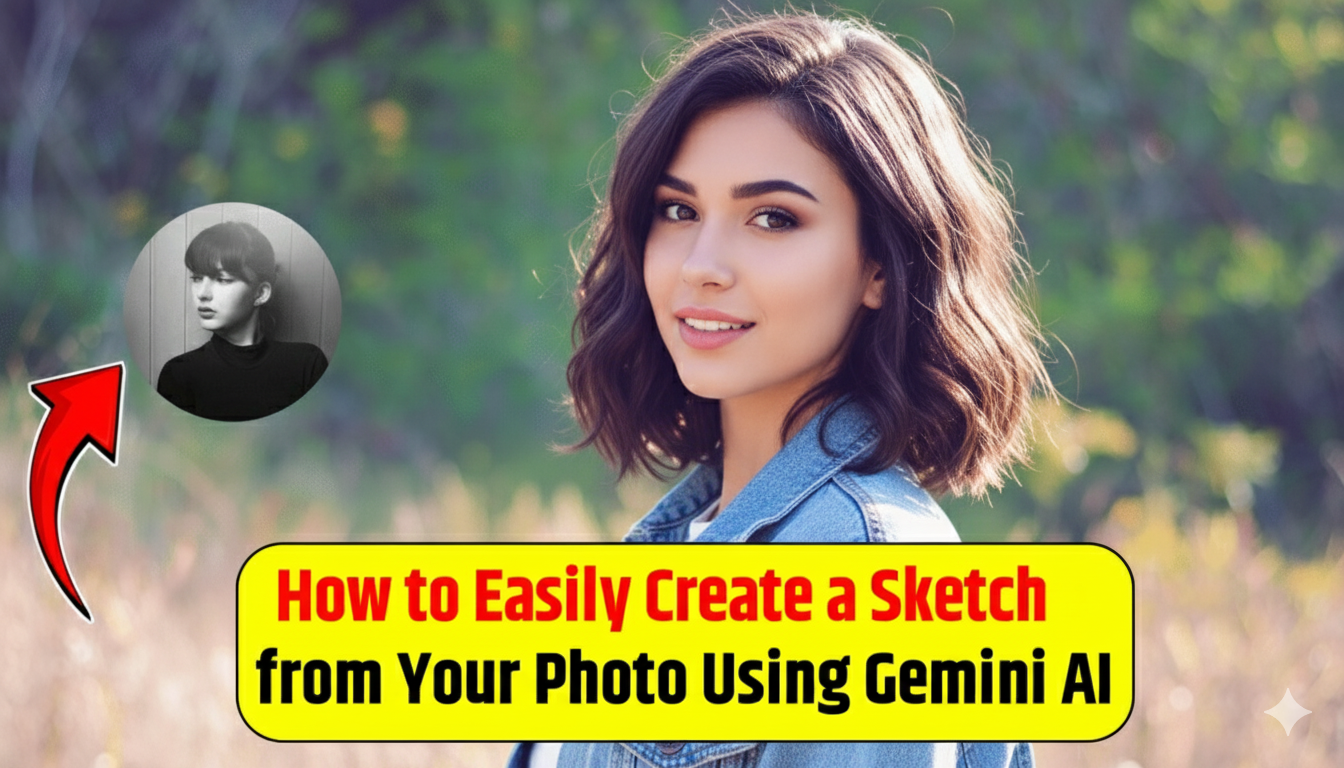
Gemini AI: How to Easily Create a Sketch from Your Photo Using Gemini AI
Have you ever wished to turn your normal photo into a hand-drawn sketch? Earlier, you had to go to an artist for a portrait, but now modern AI tools make this process effortless.
Google Gemini AI is one such tool that converts any picture into a digital sketch in just a few seconds.
In this guide, you’ll understand how Gemini works, what steps to follow, and which prompt gives the best results.
What Is a Sketch Photo?
A sketch is an art style that uses simple lines and shading instead of heavy colors. It highlights expressions, emotions, and fine details of the face.
A good sketch doesn’t just copy the picture—it reflects the personality of the person, such as their smile, attitude, or confidence.
With AI tools like Gemini, anyone can create sketch-style portraits. All you need is a photo and a short prompt, and Gemini will turn it into a clean digital drawing.
ये भी पढ़ें: Create Your Beautiful Diwali Puja Look with Gemini AI in Minutes
What Does Gemini AI Do?
Gemini is Google’s advanced AI model that understands both text and images. You can use it for chatting, writing, analyzing photos, or even generating artwork.
Gemini includes a special image model called Nano Banana, designed specifically for creative tasks like sketching, illustration, and image transformation.
This model carefully reads your photo—its lighting, texture, and small details—and then recreates it as a smooth, artistic digital sketch that often looks hand-drawn.
How to Convert Your Photo to Sketch with Gemini
- Open gemini.google.com on your browser.
- Log in using your Google account.
- Click Start Chat to open a new chat window.
- Upload your photo.
- Type your prompt and let Gemini generate the sketch.
Best Prompt Example for Gemini AI
Use this prompt for the best sketch output:
“Create a clean black and white sketch portrait of the person in this photo in a minimalist art style. Focus on the head and shoulders. Use bold contour lines and soft shading. Make it look artistic yet realistic, with a calm and confident expression. Keep the background plain white or light gray.”
This prompt works because it gives clear instructions about style, framing, mood, and details.
ये भी पढ़ें: Create Viral Bike Photos
What Each Part of the Prompt Means
✔ Clean black and white sketch portrait
This tells Gemini to use only black and white shades for a classic sketch look.
✔ Head and shoulders
It specifies the frame so that the sketch focuses on the face and shoulders.
✔ Bold contour lines and soft shading
These create depth and prevent the sketch from looking flat.
✔ Calm and confident expression
It guides the AI to match the mood you want in the portrait.
✔ Plain background
This keeps the sketch clean and ensures the person remains the main focus.
Common Mistakes to Avoid
- Uploading blurry or low-quality photos
- Writing long or confusing prompts
- Forgetting to mention the desired expression
- Not specifying the background
Avoiding these mistakes ensures your sketch comes out clean, sharp, and artistic.
Final Thoughts
Google Gemini AI has made photo-to-sketch conversion super simple. Just upload a picture, describe your preferred style in a short prompt, and enjoy your sketch in seconds.
Whether you want a new profile picture or a creative digital gift, Gemini is an amazing option—fast, free, and easy to use.
Try it once, and you’ll be surprised how realistic and artistic your AI-generated sketch looks!